Flexible Backgrounds
Use your logo on different surfaces without an unwanted background box.
Logo Production Tool
Create a clean testing asset before running logo readiness checks. Your original file stays unchanged.
Asset preparation
Inspect transparency, keep the original unchanged, prepare a testing copy, and export the selected asset as a production-ready file.
Drop your logo here
or click below to select a PNG, JPG, or SVG file
Automatic preparation handles most logos. Manual Restore and Remove tools are available when extra cleanup is needed.
Visual examples
Turn logos with fixed backgrounds into cleaner, more flexible assets for testing and everyday use.
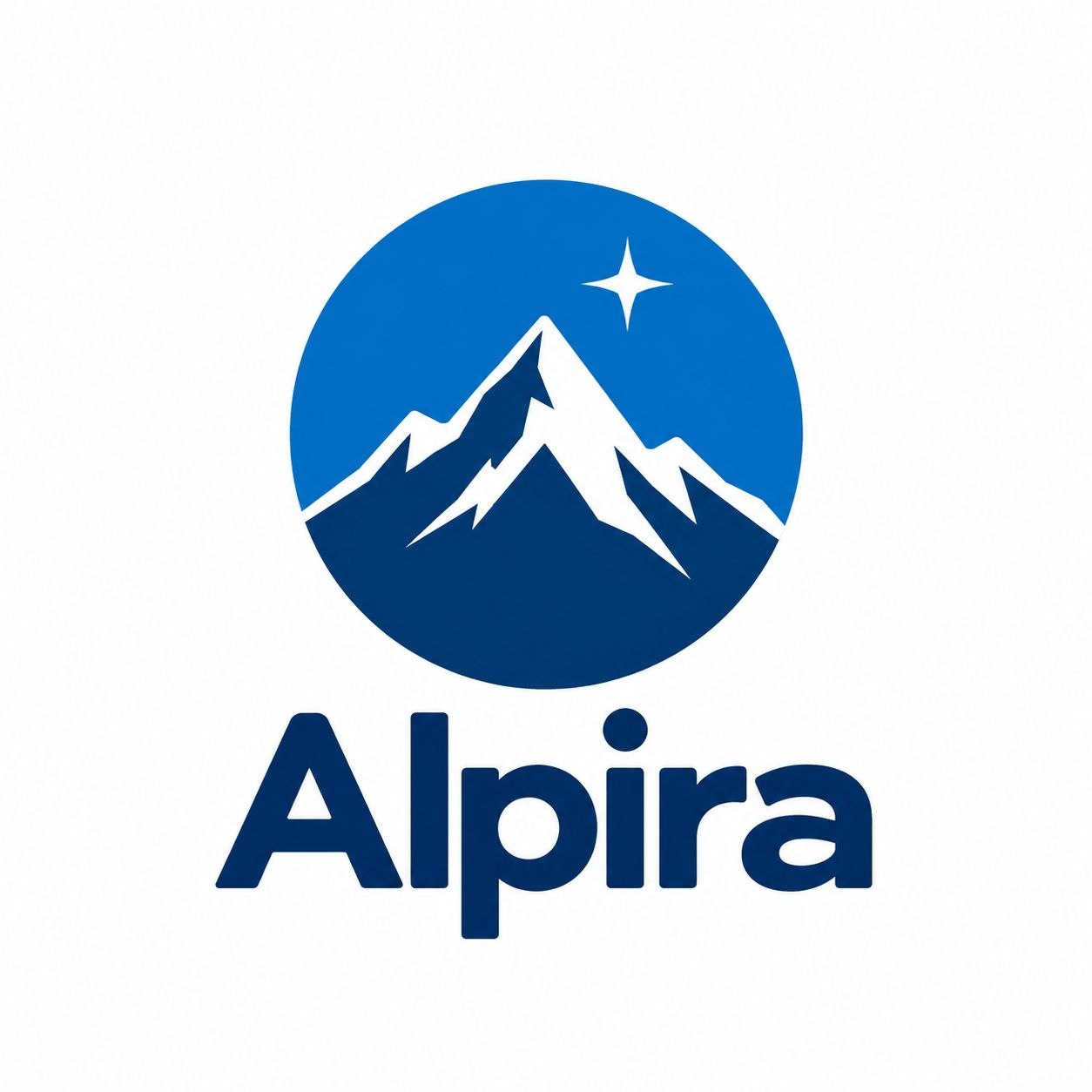
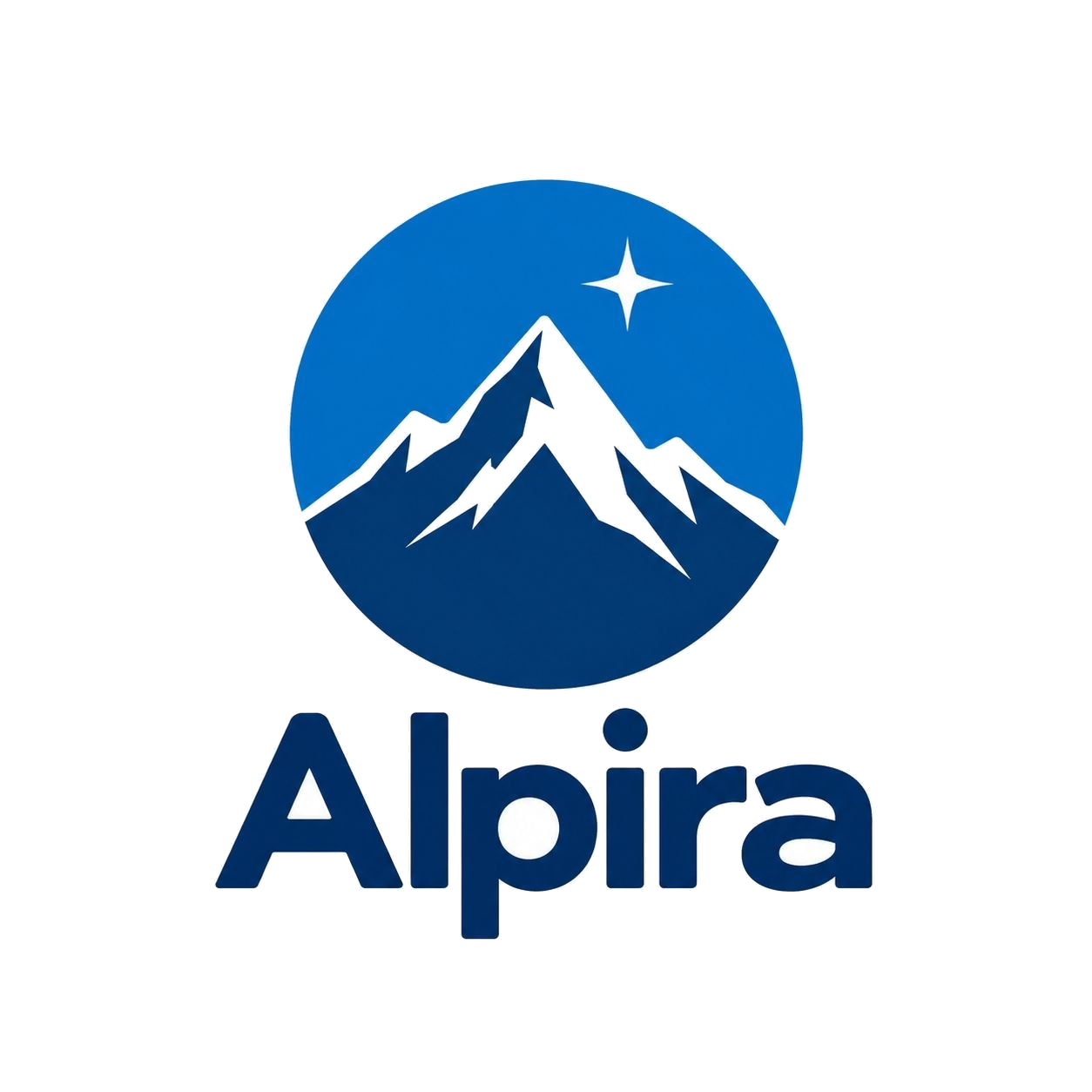
Remove a plain white background while keeping the logo mark intact. The prepared copy can be reviewed before you export or continue editing it.
A cleaner starting point
Use your logo on different surfaces without an unwanted background box.
Start with automatic preparation, then use Restore and Remove tools when your logo needs extra refinement.
Your original file stays unchanged while a separate prepared version is created.
Simple workflow
Upload your PNG, JPG, or SVG logo.
Compare your original logo with the prepared version.
Choose the version you want and export it for further use.
File fundamentals
A prepared asset is easier to test and place, but readiness also depends on the file’s edges, format, and intended use.
A transparent background lets your logo work across different surfaces without a visible background box.
Clean edges help prevent unwanted halos and rough outlines on contrasting backgrounds.
PNG supports transparency, while SVG is ideal for scalable vector artwork. JPG does not support transparency.
Your logo needs enough resolution and detail for its intended use.
Next step
A clean logo file is only the beginning. Check how your logo performs at small sizes, on different backgrounds, in social avatars, and across real-world applications.
Questions
Upload a PNG, JPG, or SVG file. The tool prepares a separate transparent testing copy when it can confidently identify a removable plain background. You can review the result before exporting it.
No. Your original file remains unchanged. The tool creates a separate prepared version for review and export.
The tool can prepare a transparent copy from some JPG files with a plain white background. Results depend on the image structure, edge contrast, and background consistency, so review the prepared asset before using it.
You can upload PNG, JPG, JPEG, or SVG files up to 5 MB. Prepared exports are provided as a transparent PNG when a prepared asset is available.
No. Asset Preparation does not upscale, increase resolution, or automatically vectorize your logo. It focuses on preparing a separate asset and reviewing transparency.