Logo Review Guide
How to Test a Logo in an Email Signature
Learn how to test a logo in an email signature for rendering, size, image loading, links, and light and dark mode before your team rolls it out reliably.
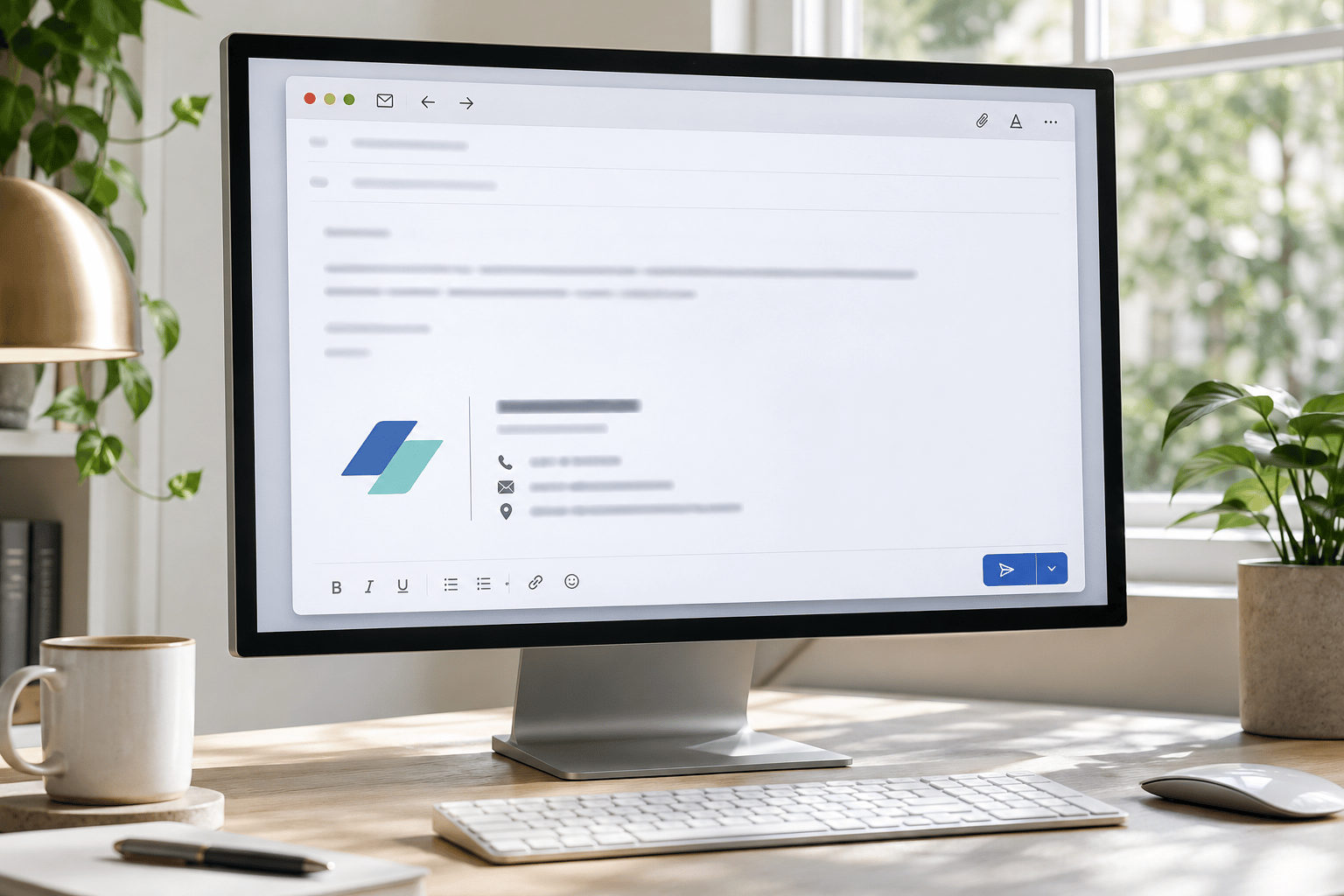
An email signature logo can look correct in a design file and still fail in the message people receive. Images may be blocked, scaled unexpectedly, softened by compression, pushed into a narrow column, or made difficult to see when an email client changes the surrounding background for dark mode.
This guide tests an existing logo in a real email signature before rollout. The goal is to find reproducible rendering, size, spacing, accessibility, and link problems—not to predict opens, clicks, or sales. For shared language around clarity, contrast, scalability, and application fit, use the Logo Evaluation Criteria.
Start with the complete signature
Test the signature system, not only the logo file
Collect the logo asset, employee name and title, contact details, social icons, legal text, separators, and destination URL. Record which sending tools and email clients matter, and whether the signature is inserted by a platform, browser extension, desktop app, or copied manually.
Save the source asset and exact signature HTML or editor output when available. A screenshot cannot tell you whether the logo is embedded, remote, pasted as data, or linked. Those implementation choices affect blocked-image and forwarding behavior.
1. Test the logo at its actual signature size
Read the received message at typical desktop width and a narrow mobile width. Check whether the mark remains identifiable without zooming, thin strokes and counters stay open, clear space survives beside the contact block, transparent padding makes the artwork look small, and the editor has not squashed or enlarged the image.
There is no universal pixel measurement. The right displayed size depends on detail, signature layout, surrounding type, and supported devices. If the full lockup is too dense, use an approved compact or symbol-only variant rather than cropping the master informally.
2. Check image loading and fallback states
Test before the logo loads and with remote images disabled. Ask whether the surrounding signature still makes sense, whether alt text identifies the company appropriately, whether an empty image box creates an awkward gap, and whether the link remains understandable. Record the client, image setting, and signature version; one fallback cannot represent every setup.
The Logo Review Tool can organize a structured first pass, but it does not replace sending test messages or checking image-loading behavior.

3. Verify the logo link and click target
Test the received message, not only the signature editor. Confirm the approved destination and protocol, make sure the entire visible logo is clickable where intended, and check desktop and mobile destinations. Look for old campaign parameters, employee-specific paths, overlapping click areas, or an accidental second link after copying and forwarding.
For a broader real-context workflow, read How to Test a Logo Before Launch and compare application fit with the SaaS Startup Logo Review example.
4. Compare light mode, dark mode, and mixed backgrounds
Review the light message background, supported dark or reversed condition, transparent edges, white boxes, and halos. A light logo can disappear on light fallback backgrounds; a dark wordmark can lose separation in a dark interface. Use an approved light, dark, monochrome, or reversed treatment rather than adding an unapproved glow or outline.
Record the client, operating system, appearance setting, message background, and signature version for each finding. A result in one client does not guarantee behavior elsewhere. See also How to Review a Logo in a Website Header for another digital surface.
5. Test wrapping, replies, forwards, and diagnosis
Test a short message, long message, reply chain, forwarded message, narrow width, larger system text, and browser zoom where relevant. Look for a logo pushed below contact details, unintended column wrapping, divider artifacts, duplicate images, clipped artwork, or a link separated from the visible mark.
Classify each finding as an asset, identity-system, layout, implementation, or client-rendering issue. Preserve the exact signature version and name the client, state, visible failure, and smallest next test. For another application context, see the business card logo guide.
Email signature logo checklist
- The asset, version, insertion method, and supported clients are documented.
- The mark remains clear at actual desktop and mobile display sizes.
- Image loading, alt text, link target, and fallback behavior are intentional.
- Light, dark, reversed, monochrome, and mixed backgrounds are reviewed where relevant.
- Short messages, replies, forwards, narrow widths, and longer text are considered.
- Every finding names its condition, visible failure, owner, and next action.
Email signature logo testing FAQ
What is the best size for a logo in an email signature?
There is no universal size that works for every logo, signature layout, and email client. Choose a displayed size that keeps the mark identifiable and proportionate to the signature text, then test it in the actual desktop and mobile conditions the team supports. Check the visible artwork bounds rather than relying only on the image box dimensions.
Why does my email signature logo look different in dark mode?
The email client or operating system may change the surrounding background or apply a different presentation to message content. A dark wordmark can lose separation, while a transparent image can reveal a halo or unexpected edge. Test the exact client and appearance setting, then use an approved light, dark, monochrome, or reversed treatment where the identity system supports one.
How do I test a signature logo when images are blocked?
Send a test message with remote images disabled or view it before the image loads. Check whether the signature still identifies the sender or company, whether the image area creates an awkward gap, and whether the alt text is useful. Record the client and signature version; blocked-image behavior varies by setup.
Should the logo in an email signature be clickable?
It can be, if the team has an approved destination and the implementation makes the click target clear. Test the received message, confirm the URL, check the entire visible logo area, and verify the destination on representative devices. A working link confirms the implementation in that test; it does not prove campaign performance.
Can one email signature logo work in every email client?
Do not assume that it will render identically everywhere. Email clients can differ in image loading, sizing, HTML support, spacing, background treatment, and dark-mode behavior. Define the clients and states the team supports, test those conditions, document limitations, and provide approved variants or layout fallbacks when needed.